
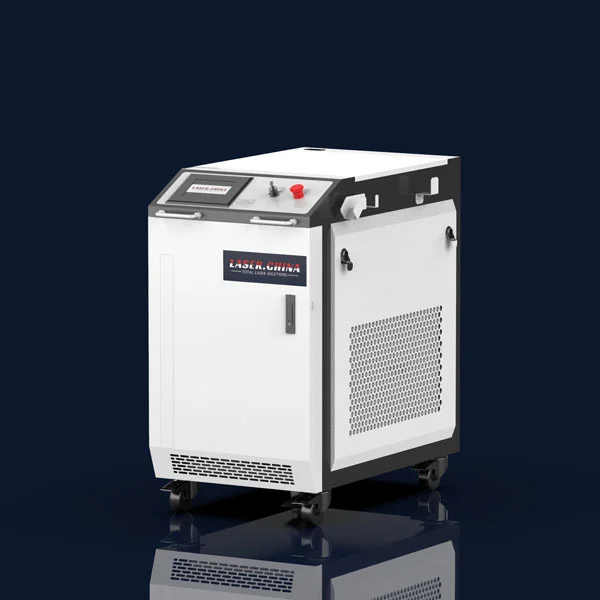
Downloading and installing EZCAD2 software is straightforward, but to get the most out of this laser marking and engraving tool, it helps to understand its key features, system requirements, and some common issues you may face. Here’s a step-by-step guide on how to download and install EZCAD2, along with tips to optimize your experience with the software.
1. Overview of EZCAD2
EZCAD2 is a popular laser marking software developed by Jinan JCZ Technology Co., Ltd. It’s widely used in industrial settings for laser engraving, marking, and etching. EZCAD2 supports a range of laser types, including fiber, CO2, and UV lasers. The software offers powerful features for handling text, graphics, barcodes, and complex vector files, making it a versatile choice for marking various materials like metals, plastics, and ceramics.
2. System Requirements
Before downloading EZCAD2, ensure your computer meets the minimum system requirements. The software is compatible with Windows operating systems, primarily Windows 7, 8, and 10 (32-bit and 64-bit). To operate EZCAD2 smoothly, you should have at least 4 GB of RAM, a 1 GHz processor or higher, and at least 500 MB of free disk space. For optimal performance, a dedicated graphics card is recommended, especially if you plan to work with complex designs.
3. How to Download EZCAD2
To download EZCAD2 safely, visit the official website of the manufacturer or distributor, such as the Jinan JCZ Technology Co., Ltd. website. This ensures that you’re getting the latest, virus-free version. Beware of third-party websites that offer EZCAD2 downloads, as they might contain outdated versions or even malware. Some trusted distributors also offer the software for download if you purchased your laser machine from them.
Here’s how to download EZCAD2 from an official or trusted source:
- Go to the official website or trusted distributor site.
- Navigate to the “Downloads” or “Support” section.
- Locate EZCAD2 and select the correct version compatible with your operating system.
- Download the installer file to your computer.
4. Installation Steps
Once you have downloaded the installer file, follow these steps to install EZCAD2:
- Locate the downloaded file (usually in your “Downloads” folder) and double-click to begin installation.
- Follow the on-screen prompts, including accepting the license agreement and choosing your installation directory.
- After the installation completes, the software will automatically configure settings and drivers required to communicate with your laser machine.
- Connect your laser machine to your computer via USB and ensure it is powered on. Windows may prompt you to install additional drivers for the laser controller. If so, follow the instructions provided.
5. Initial Setup and Testing
Once installed, open EZCAD2 and go through the initial setup. Here’s how:
- Configure the “Work Area” to match the dimensions of your laser machine’s marking area.
- Check communication settings to ensure EZCAD2 can communicate with your laser machine. This usually involves selecting the correct COM port in the “System Config” section.
- Perform a test run by creating a simple design (e.g., text or basic shape) and marking it on a test piece. Adjust power, speed, and frequency settings based on the material you’re using.

6. Common Issues and Troubleshooting
EZCAD2 users sometimes face connectivity or configuration issues. If EZCAD2 cannot detect your laser machine, try these steps:
- Ensure all drivers are installed correctly, especially the USB driver.
- Check your cable connections and USB ports. Use a direct USB connection instead of a hub.
- Restart both the software and your computer if issues persist.
If you encounter issues with marking quality, tweak settings like laser speed, power, and pulse frequency. Many users find they need to experiment with different settings to achieve optimal results for each material.
7. Getting the Most Out of EZCAD2
EZCAD2 has extensive customization options and supports both bitmap and vector files, enabling complex designs. To maximize your results:
- Learn about layer management in EZCAD2 to work on multi-part designs.
- Explore the extensive list of compatible formats (e.g., .AI, .PLT, .DXF) for seamless integration with graphic design software.
- Regularly update the software when prompted, as updates often fix bugs and improve functionality.
In conclusion, EZCAD2 is a powerful software for laser marking that can be easily downloaded and installed. By following the steps above and familiarizing yourself with the settings, you can create precise, detailed designs that take full advantage of your laser machine’s capabilities. Remember to start with small test runs, adjust settings as needed, and always consult your machine’s user manual for additional guidance.
